
How to Use NotebookLM for Studying: A Step-by-Step Workflow
✓ After this tutorial: A structured NotebookLM study system with one notebook per course, all materials uploaded, and a repeatable exam-prep workflow using Flashcards, Quizzes, Audio Overviews, Mind Map, and Learning Guide.
A hands-on tutorial for high school and college students covering everything from setting up your first notebook to using the full Studio panel — flashcards, quizzes, audio overviews, and Learning Guide — as part of a structured exam prep workflow.

Why NotebookLM Works Differently for Studying
Most AI tools pull answers from the open web, which means they can invent plausible-sounding facts. NotebookLM works differently: it only answers questions using the documents you upload. This approach — called retrieval-augmented generation (RAG) — keeps every response anchored to your actual course materials rather than whatever the model happens to know. If you want a deeper look at what the tool is, how it's priced, and whether it's right for your situation, the NotebookLM for Students feature and pricing guide covers all of that. This tutorial is about how to actually use it.
The source-grounded approach meaningfully reduces hallucination risk. A peer-reviewed study evaluating NotebookLM, ChatGPT, and Gemini on document-based queries found that NotebookLM's hallucination rate was roughly 13%, compared to approximately 40% for both ChatGPT and Gemini. The study noted that NotebookLM's citation requirement creates a structural constraint against interpretive overreach. That said, a 13% error rate is not zero — the most common failure mode is interpretive overconfidence, where the tool adds a confident characterization that goes slightly beyond what the source actually says. Building a habit of clicking citations takes one second and catches most of these.
The tutorial that follows teaches a structured workflow built around three pillars: organized notebooks by course, complete source uploads, and deliberate use of every relevant Studio output paired with active recall. By the end, you'll have a repeatable system you can apply to any course this semester.
Step 1: Create Your Account and First Notebook
You only need a Google account — there's no separate signup. Go to notebooklm.google and sign in. Once you're in, click the button to create a new notebook. Give it a clear name — your course name and semester works well (e.g., "BIO 201 — Fall 2026").
The interface has three panels you'll use constantly:
- Sources (left panel) — where you upload and manage all your course materials for this notebook.
- Chat (center panel) — where you ask questions and get answers grounded in your uploaded sources.
- Studio (right panel) — where you generate study outputs like flashcards, quizzes, audio overviews, and mind maps with one click.
Step 2: Organize Notebooks by Course
The most important organizational decision you'll make is this: one notebook per course, no exceptions. When all your sources for a single course live in one notebook, every AI answer is grounded exclusively in your actual exam material for that course. There's no risk of your chemistry notebook pulling in concepts from your history readings.
NotebookLM notebooks are self-contained — a notebook cannot reference sources in another notebook. Students sometimes see this as a limitation, but for exam prep it's a feature. Isolation means the AI is scoped to exactly what your professor assigned. When you're studying for a specific exam, that's precisely the constraint you want.
Step 3: Upload Your Course Materials
NotebookLM accepts a wide range of file types: PDFs, Google Docs, Google Slides, websites, YouTube URLs, audio recordings (MP3, WAV), video files (MP4, AVI), images (PNG, JPG, WEBP), plain text files, DOCX, and CSV. For most students, the practical workflow looks like this:
- Lecture slides: Export PowerPoint or Google Slides as a PDF before uploading. Direct slide file uploads can lose formatting; PDF export preserves everything cleanly.
- YouTube lecture recordings: Paste the YouTube URL directly into the Sources panel. NotebookLM processes the video's transcript, so you can ask questions about lecture content without rewatching the entire video.
- Audio lecture recordings: Upload MP3 or WAV files directly. If your professor posts recorded lectures or you record classes yourself, these become searchable and quotable inside your notebook.
- Textbook chapters and readings: Upload the PDF. If you have a Google Doc version of notes or a shared class document, add it directly via the Google Docs connector.
- Websites and articles: Paste any URL. NotebookLM fetches and indexes the page content.
One detail worth knowing: every AI response in the Chat panel includes inline citations. Clicking a citation takes you to the exact passage in the uploaded document that the answer is based on. This makes source verification a one-second action, not a manual re-read.
Step 4: Tour the Studio Panel — What Each Output Is For
The Studio panel is where most students underuse NotebookLM. The typical pattern is: discover Audio Overview, use it a few times, never explore the rest. The full panel has seven or more study-relevant outputs, and each one serves a different point in the study cycle. Here's what each one is for — not just what it is.
| Studio Output | What It Produces | When to Use It for Studying |
|---|---|---|
| Flashcards | A customizable deck of Q&A cards; downloadable as CSV; customizable by topic, difficulty (easy/medium/hard), and quantity | Active recall drills — especially for vocabulary, definitions, and factual recall. Download as CSV to import into Quizlet or another spaced-repetition tool. |
| Quizzes | Multiple-choice questions generated from your sources; includes an 'Explain' button that cites the source passage behind each answer | Practice testing before exams. More passive than flashcards but mirrors common exam formats. |
| Audio Overview — Deep Dive | A two-host conversational discussion of your sources, covering key concepts in depth | Long commute review or background listening during a study block. Best for reinforcing concepts you've already encountered. |
| Audio Overview — Brief | A single-host summary hitting the main points quickly | Morning-of-exam review when you want a fast refresher without going deep. |
| Audio Overview — Debate | Two hosts argue different perspectives on a topic from your sources | Essay argument prep and courses that require evaluating competing positions. |
| Audio Overview — Critique | Two hosts offer constructive feedback on the ideas or arguments in your sources | Courses with analytical writing components; helps surface weaknesses in an argument you're studying. |
| Mind Map | A hierarchical visual map of the key concepts and relationships in your sources | Quick scope check at the start of a study session, or a rapid overview the morning before an exam. |
| Video Overview | A short animated video summarizing your sources | Visual learners who want a change of medium from text and audio. |
| Study Guide / Report | A structured written summary of your sources, organized by topic | Getting oriented in a new unit or checking that you haven't missed a major topic area. |
| Learning Guide | An interactive chat mode that asks Socratic probing questions instead of giving direct answers | Active self-testing before exams. Functions as a built-in tutor that forces you to retrieve information rather than just read it. |
Step 5: Use Chat and Learning Guide for Active Recall
Generating a flashcard deck or listening to an audio overview is not studying — it's preparation for studying. The research on memory is unambiguous: durable retention requires retrieving information from memory, not just re-exposing yourself to it. (The retrieval practice study method guide explains the evidence behind this and gives a weekly schedule for applying it.) NotebookLM has two built-in mechanisms that force active retrieval rather than passive consumption.
Learning Guide: Socratic Questioning Mode
Learning Guide is a chat mode that asks you probing, open-ended questions rather than providing direct answers. Instead of typing "explain the sodium-potassium pump," you activate Learning Guide and it will ask you what you already know, then probe the gaps. It adapts its follow-up questions based on your responses, functioning more like a tutor than a search engine.
Use Learning Guide in the two to three days before an exam. Pick one topic from your mind map or study guide, open Learning Guide, and let it interview you on that topic. The discomfort of not knowing an answer immediately is the signal that the retrieval attempt is working.
The Feynman Role-Flip via Chat
The second technique uses the standard Chat panel with a role-flip prompt. Instead of asking NotebookLM to explain something to you, you explain it to NotebookLM — and ask it to play the role of a probing student who doesn't understand yet.
A practical starting prompt:
- "I'm going to explain [concept] to you. You're a curious student who doesn't understand it yet. After I explain, ask me one basic question, one follow-up question, and one edge-case question. Then tell me honestly what I got right and what I missed."
This technique — sometimes called the Feynman method — exposes the difference between recognizing a concept and actually understanding it well enough to explain it. NotebookLM's responses stay grounded in your sources, so the follow-up questions it asks will be specific to your course material, not generic.
Step 6: Exam Prep Countdown Workflow
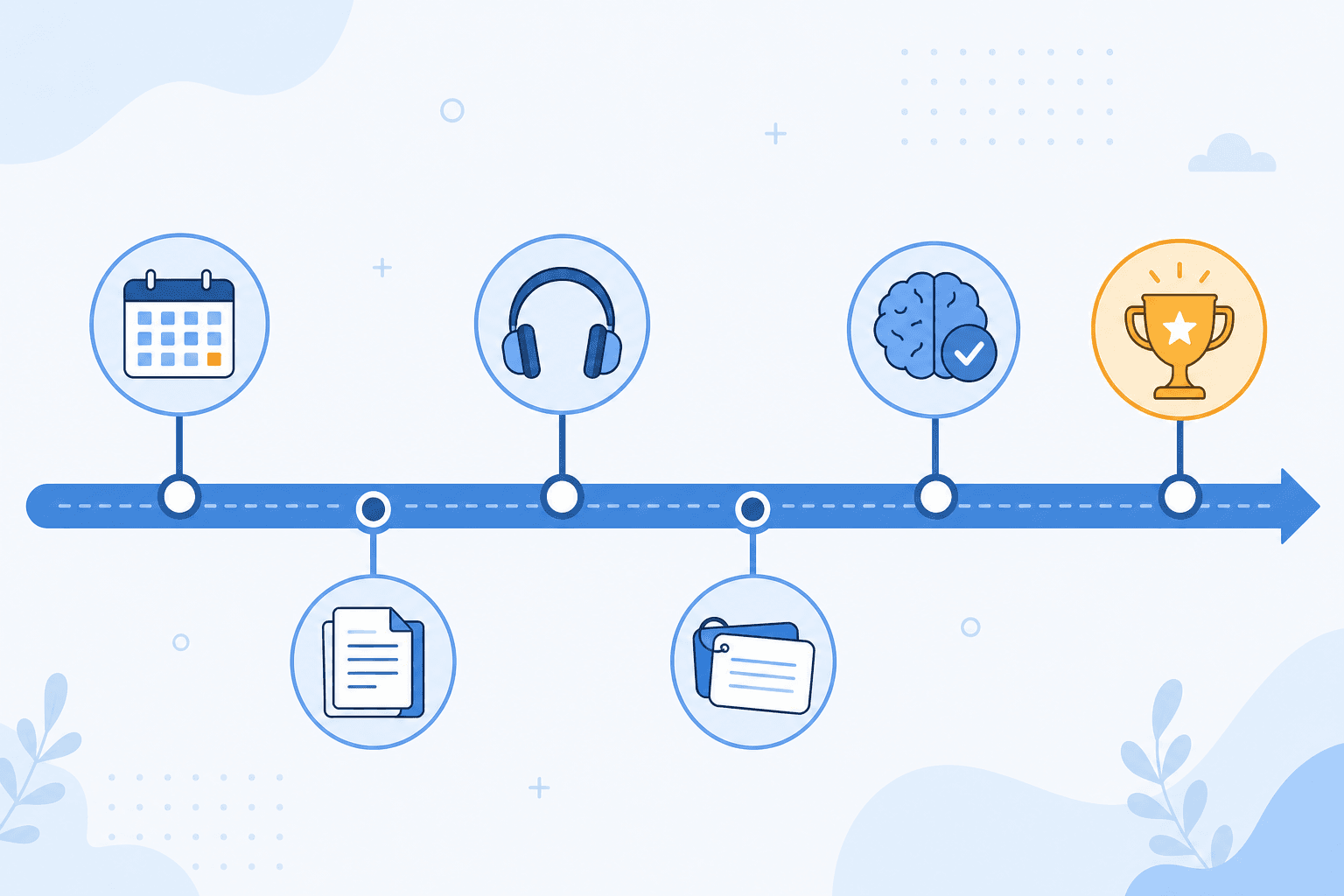
The Studio outputs become most useful when you assign each one to the right phase of exam prep rather than using them randomly. The structure below maps specific tools to each phase of a two-week countdown.
| Phase | Timing | Studio Tools to Use | Goal |
|---|---|---|---|
| Scope check | 2 weeks out | Mind Map + Study Guide / Report | Confirm you've uploaded all relevant materials and identify any topic gaps before you start drilling. |
| Active recall drilling | 1 week out | Flashcards (medium/hard difficulty) + Quizzes | Test yourself on the content you've already reviewed. Use the 'Only cards you missed' review option to focus on weak areas. |
| Deep review | 1 week out | Audio Overview — Deep Dive | Reinforce concepts during commute time or while doing low-focus tasks. Not a substitute for active recall. |
| Socratic self-testing | 2–3 days out | Learning Guide + Quiz re-runs on missed items | Force retrieval on the topics where your flashcard and quiz performance was weakest. |
| Final review | Night before | Audio Overview — Brief only | A single pass over the main points. No new material. No flashcards. Sleep matters more than one more study session. |
Common Mistakes Students Make
These four mistakes account for most of the gap between students who get real studying gains from NotebookLM and those who don't.
- Using it as a passive Q&A chatbot. Asking "explain this concept" and reading the answer is not studying. It's re-exposure. The fix is simple: after reading any AI response, close the tool and write down what you just learned from memory before moving on.
- Uploading incomplete materials and trusting the answers anyway. NotebookLM can only answer from what you've uploaded. If you're missing three weeks of lecture slides, the AI won't tell you — it will just answer from what's there. Run a Mind Map at the start of each study session to check your coverage.
- Skipping citation verification. Even at a 13% hallucination rate, the most common error type is interpretive overconfidence — a confident-sounding summary that slightly misrepresents the source. Clicking the inline citation to verify an answer takes one second. Build it as a habit, especially for any claim you plan to use in an essay or exam answer.
- Using only one or two Studio outputs. Most students discover Audio Overview and stop there. The Flashcards, Quizzes, Mind Map, and Learning Guide serve fundamentally different studying functions. Passive review (audio, mind map) and active recall (flashcards, quizzes, Learning Guide) need to both be part of your workflow for the tool to produce exam-ready retention.
Academic Integrity: Acceptable and Problematic Uses
NotebookLM is a tool for understanding your own course materials — not for producing work to submit as your own. The distinction matters practically, not just ethically.
- Acceptable: Using NotebookLM to understand lecture content, generate self-test questions from your own uploaded notes, review concepts before an exam, create flashcards for personal study, and explore connections between ideas in your course materials.
- Potentially problematic: Using NotebookLM to generate text you submit as your own writing, using it to complete take-home assessments in ways your course policy prohibits, or uploading assignment prompts to generate answers rather than to understand the underlying material.
Quick-Start Checklist
If you want to complete your first productive NotebookLM session today, work through this checklist in order:
- Sign in at notebooklm.google using your Google account — no additional signup needed.
- Create one notebook for each active course this semester. Name each one clearly (course name + semester).
- Upload all available course materials for your first notebook: lecture slides (exported as PDF), textbook chapters, YouTube lecture URLs, and any audio recordings.
- Open the Studio panel and generate a Mind Map. Check that the topics shown match your course syllabus — any missing topic means a missing source.
- Generate a Study Guide to get a written overview of what's in your notebook and confirm coverage.
- Run Flashcards on medium difficulty for one topic. After reviewing the deck, close the tool and write down as many cards as you can recall from memory.
- Open Learning Guide and pick one topic you're least confident about. Let it ask you probing questions for five minutes without looking at your notes.
- Schedule one Audio Overview (Deep Dive) session for a commute or low-focus time block this week — not as a substitute for active recall, but as reinforcement after you've already drilled the material.
Next Steps
- How to Create a Quizlet Study Set: Manual, Import, and AI Methods →
A step-by-step guide for high school and college students who want to build their own Quizlet study sets from scratch — covering manual entry, bulk text import, and AI generation from notes, plus card design tips and folder organization.
- How to Import MCAT Decks into Anki (Both Methods, Step by Step) →
A step-by-step tutorial for pre-med students who have chosen an MCAT Anki deck and need to get it working fast — covering the direct .apkg file method for static community decks and the AnkiHub subscription method for the AnKing MCAT deck, plus post-import configuration and fixes for the most common failure states.
- How to Set Up Anki from Scratch: A Complete Beginner's Guide →
A step-by-step tutorial for first-time Anki users — covering installation on every platform, enabling FSRS settings, creating your first deck and cards, syncing across devices with AnkiWeb, and avoiding the six mistakes that cause most beginners to quit within the first week.
Comments
Join the discussion with an anonymous comment.