
Cornell Notes Template: Free Printable and Digital Formats for Students
A complete guide to the Cornell note-taking system for middle school, high school, and college students — explains what every section of the template is for, how to use the 5-Rs study loop, and where to download free templates in PDF, Google Docs, Microsoft Word, and Notion.
Available Formats
Access links are provided in the guide below.
What Are Cornell Notes and Why Do They Work?
The Cornell note-taking system was developed in the 1950s by Walter Pauk, an education professor at Cornell University, and first described in his book How to Study in College. The core idea is straightforward: instead of writing everything in a single undivided block, you divide the page into three distinct zones — a cue column, a main notes area, and a summary section. Each zone serves a different cognitive purpose at a different point in the study process.
What separates Cornell notes from plain note-taking is the built-in review structure. The cue column forces you to go back after class and turn your notes into self-test questions. The summary section requires you to synthesize the material in your own words. These steps shift the activity from passive transcription — just copying what a teacher says — toward active recall, which is the mechanism most strongly associated with durable memory.
The research evidence is worth being honest about: studies on the Cornell method show mixed results. Some studies find improved note quality and academic performance; others find no significant grade difference compared to other structured methods. Where the system consistently shows value is in how it organizes synthesis and review — students who complete the full process (including the cue questions and summary) tend to produce qualitatively better notes and engage more deeply with the material than those who use the layout alone.
Cornell Notes Template Anatomy: What Every Section Is For
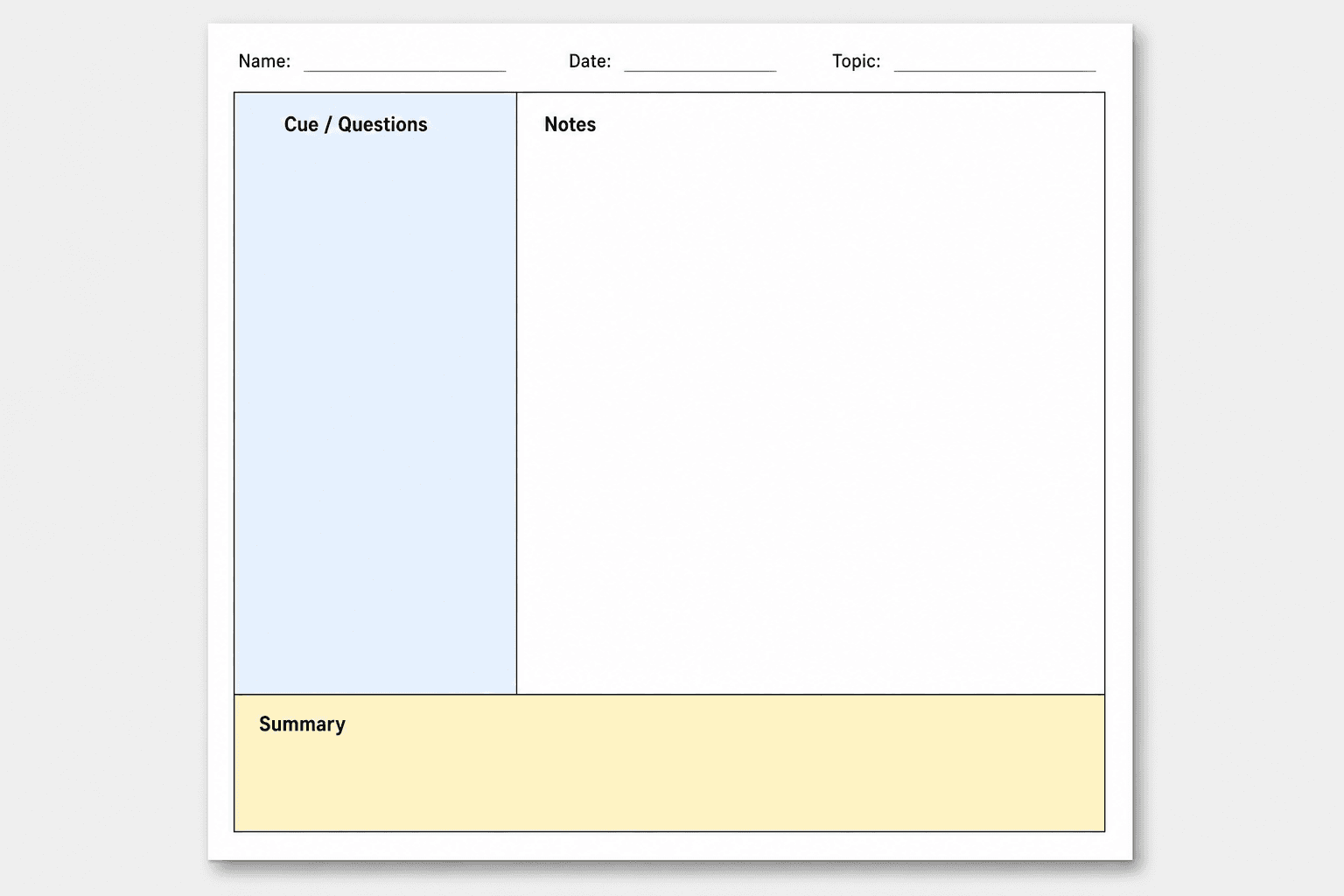
A standard Cornell notes page has four zones. Understanding what each zone is for — and when to fill it in — is the difference between using the system and just using the layout.
| Zone | Approximate Size | When to Fill It In | What Goes There |
|---|---|---|---|
| Header | Full width, 2–3 lines | Before class | Name, date, course, topic or lecture title |
| Notes area | ~6 inches wide (right side) | During class | Main ideas, facts, diagrams — in your own shorthand |
| Cue column | ~2.5 inches wide (left side) | After class | Self-test questions, keywords, prompts mapped to your notes |
| Summary section | ~2 inches tall (bottom) | Within 24 hours | 2–3 sentences in your own words capturing the page's main point |
The physical dimensions come from the original Cornell format: draw a vertical line approximately 6–6.35 cm (about 2.5 inches) from the left edge to create the cue column, and leave about 5 cm (roughly 2 inches) at the bottom for the summary. These proportions ensure the notes area stays dominant — it should occupy the majority of the page — while the cue column is wide enough to hold a full question or keyword phrase.
Free Cornell Notes Templates by Format
The right format depends on how and where you take notes. All four options below are free-tier accessible — no paid subscription required.
Printable PDF
Best for: handwritten notes in class, paper-based study sessions, or when you prefer to annotate physically.
When printing, use these settings to preserve the correct column proportions: 100% scale (not "fit to page"), portrait orientation, and US Letter or A4 depending on your paper. Scaling the template down to fit will compress the cue column and make it unusable.
- Printabulls — 15 free PDF variants including ruled and blank versions in multiple styles.
- TemplateLab — PDF, Word, and Excel formats; includes standard and wide-ruled variants.
- PolarNotes — US Letter and A4 versions; exports cleanly to PDF via File → Download → PDF.
- Goodnotes — free printable PDF template; also available as a built-in template in the iPad app.
Google Docs
Best for: typing notes on a laptop, sharing notes with a study group, or accessing your notes from any device.
To use a Google Docs template, open the link and choose File → Make a copy. This saves a personal editable version to your Google Drive. Do not edit the original template directly — making a copy keeps the source intact for future use.
- Write one idea per line in the notes column — this makes it easier to map cue questions to specific points after class.
- Use a comment (Insert → Comment) to flag anything you didn't catch or need to verify later.
- Organize copies by course folder in Drive — one document per lecture, named by date and topic.
- Share via link with collaborators if you're co-taking notes with a classmate.
- WordLayouts — Google Docs, .docx, .dotx, and .odt formats in one place.
- TheGoodDocs — 12 templates in Google Docs, Word, Google Sheets, and Excel; lined, blank, and color variants.
- PolarNotes — direct copy link for Google Docs; US Letter and A4 sizes.
Microsoft Word
Best for: offline editing, customizing column widths or fonts, or if your school uses Microsoft 365.
Download either a .docx file (a standard Word document you edit directly) or a .dotx file (a Word template that creates a new document each time you open it, preserving the original). If you use LibreOffice, the .odt format from WordLayouts is directly compatible.
- WordLayouts — .docx, .dotx, and .odt options.
- TheGoodDocs — Word and Excel formats alongside Google Docs.
- TemplateLab — 16 templates in Word, Excel, and PDF.
Notion
Best for: students already using Notion for their study system who want to tag notes by course, topic, or exam date and review them in a database view.
A Cornell notes template in Notion lets you create a new page for each lecture and tag it with properties like course name, date, and review status. You can then filter your notes database to show only pages you haven't reviewed yet — a useful supplement to the weekly review step.
How to Fill Out a Cornell Notes Template: The 5-Rs Study Loop
The layout is only the container. The 5-Rs process is what makes it work. Skipping the cue-question step or the weekly review loop reduces the system to a slightly more organized version of plain notes — which misses the point.
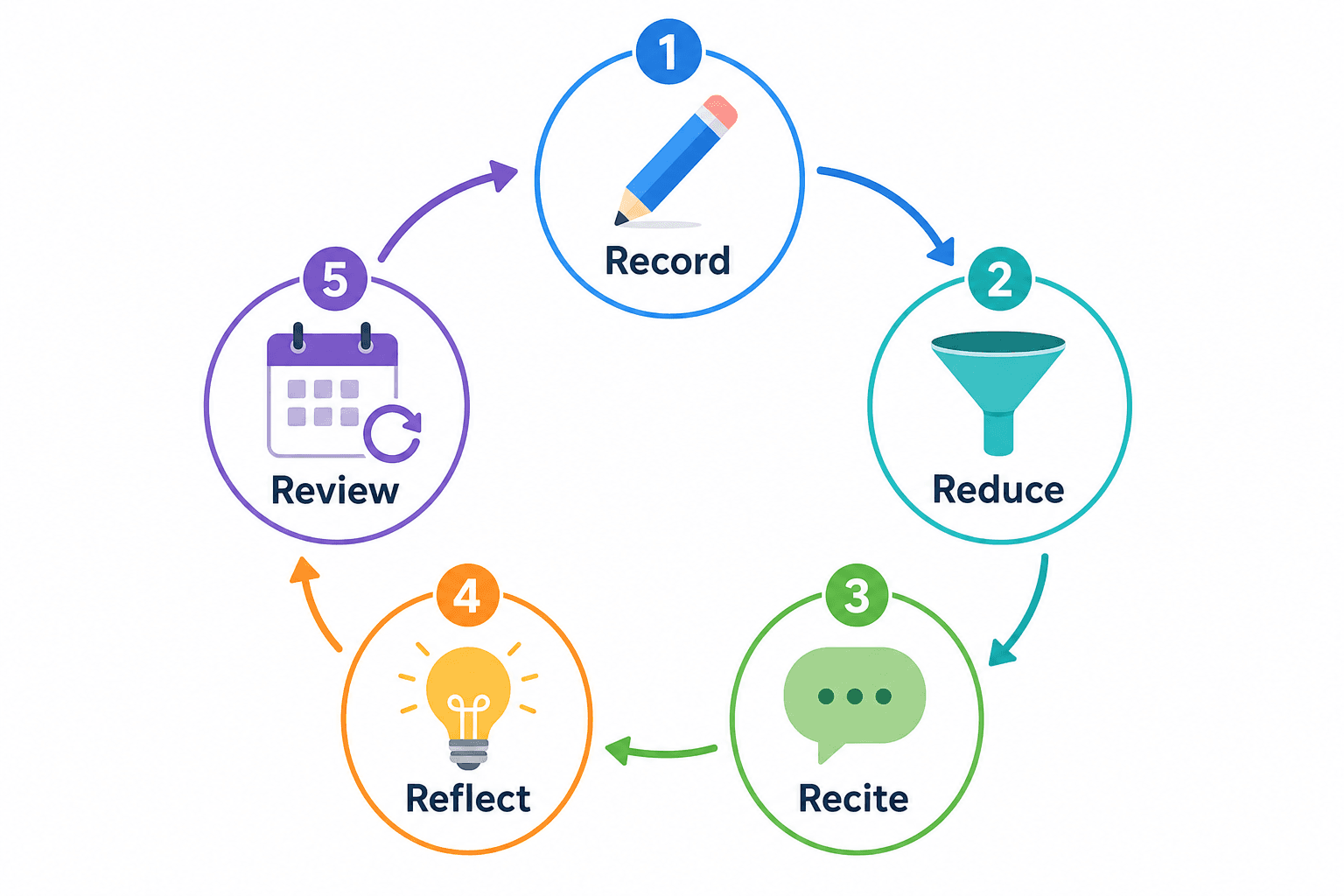
| Step | When | What to Do |
|---|---|---|
| Record | During class | Fill the notes column with main ideas, key facts, and diagrams. Use abbreviations and telegraphic phrases — write fast, not perfectly. |
| Reduce | After class (same day) | Read through your notes. Write a question or keyword in the cue column for each key point on the right. This is the most important step. |
| Recite | After reducing | Cover the notes column. Read each cue question and answer it aloud or in writing from memory. Uncover and check. |
| Reflect | After reciting | Add your own commentary: connections to other material, why something matters, questions you still have. |
| Review | Ongoing | Revisit the full page at 24 hours, 3 days, and 1 week after the lecture. Use the summary and cue questions as your entry point. |
Before, During, and After Class at a Glance
- Before class: Fill in the header (name, date, course, topic). Optionally write 2–3 questions in the cue column based on the syllabus or previous lecture — this primes your attention.
- During class: Write in the notes column only. Use abbreviations, arrows, and symbols. Keep one idea per line if possible. Don't worry about complete sentences.
- After class (same day): Add cue questions to the left column. Write the summary at the bottom. Do the Cover-and-Check self-test at least once.
- Review sessions: Use the cue column as your quiz sheet. Cover the right side, answer from memory, then check. Repeat at 24 hours, 3 days, and 1 week.
Subject-Specific Tips for Using Cornell Notes
The Cornell format adapts to different subjects, but the cue column strategy changes depending on what you need to retrieve.
STEM and Math
- Use the cue column for formula prompts ("What is the formula for kinetic energy?") rather than just labeling the formula name.
- Write problem types in the cue column ("Integration by parts — when to use?") so you can self-test on method selection, not just computation.
- For derivations, note the starting condition in the cue column and work through the derivation from memory during review.
- The summary section works well for stating the main theorem or concept in plain language: "This section is about how acceleration relates to net force and mass."
Humanities and Reading-Heavy Courses
- Use the cue column for argument questions: "What is the author's main claim in this section?" or "What evidence supports this interpretation?"
- Note key quotes with page numbers in the notes column; write a retrieval cue in the left column that lets you find the quote without re-reading the whole page.
- The summary is especially useful for comparative analysis: use it to state how this lecture or reading connects to the previous one.
Language Learning
- Use the cue column for vocabulary prompts: write the English word or a definition on the left, and the target-language word or phrase in the notes column on the right.
- For grammar rules, write the rule name or a usage question in the cue column ("When do you use the subjunctive?") and the explanation with examples in the notes area.
- The summary section works well as a short paragraph written in the target language, using the vocabulary and structures from that page's notes.
Turning Cornell Cues into Flashcards
If you use spaced repetition software alongside your notes, the Cornell cue column is already formatted for it. Each cue question becomes the front of a flashcard; the corresponding content from the notes area — or the summary — becomes the back.
This pipeline works directly with Anki and Quizlet. After completing the Reduce step (writing your cue questions), go through the cue column and create one card per question. For Anki, this keeps your deck tightly connected to your actual class material rather than relying on pre-made decks that may not match your course's emphasis.
- Complete the Reduce step: write all cue questions in the left column after class.
- For each cue question, create a new card: question on the front, the relevant notes or summary content on the back.
- Add the course name and lecture date as a tag so you can filter cards by topic.
- Review the flashcards at the same intervals as the Cornell review cycle: 24 hours, 3 days, 1 week.
Frequently Asked Questions
- Can I use Cornell notes digitally? Yes. Google Docs, Microsoft Word, and Notion all support the Cornell layout effectively. Google Docs works well for collaborative notes and cloud access. Word is better for offline use and customization. Notion suits students who want to organize notes in a database with tags and filters. The method works the same way regardless of format — the key steps (cue questions after class, summary within 24 hours, regular review) apply equally to paper and digital.
- What size should the cue column be? The standard dimension is approximately 2.5 inches (about 6–6.35 cm) from the left edge of the page. This gives enough space for a full question or keyword phrase without crowding the main notes area. On digital templates, this is typically set as a fixed-width column — you don't need to measure it manually.
- Do I have to write the summary the same day? Writing it within 24 hours is strongly recommended. The summary is most effective when the material is still active in memory — writing it forces you to consolidate what you understood while you can still identify gaps. Waiting until exam week turns the summary into a re-reading exercise rather than a synthesis task.
- Is the Cornell method scientifically proven? The research evidence is mixed. Some studies find improved note quality and performance; others find no significant difference in grades compared to other structured methods. The system's strengths are clearest when students complete the full process — particularly the cue-question and review steps. Using only the layout without the review loop produces much weaker results. The method is widely used and has institutional support, but it is not definitively superior to all other approaches for all students and subjects.
- What if I miss something during class? Leave a blank space or write a question mark in the notes column when you miss something. Fill in the gap as soon as possible after class — from a classmate's notes, a recording, or the textbook. The cue column step is a natural opportunity to identify and address gaps: if you can't write a cue question for a section, you probably don't understand it well enough yet.
Comments
Join the discussion with an anonymous comment.